
How to Clean Install GPU Drivers Using Display Driver Uninstaller (DDU)
Are you experiencing random game crashes, screen flickering, or dropping frames? Upgrading to a new graphics card? Standard Windows uninstallation often leaves behind corrupted registry entries and stray files.
Display Driver Uninstaller (DDU) is the ultimate freeware utility to completely wipe AMD, NVIDIA, and Intel graphics driver leftovers from your system. Here is your step-by-step guide to a completely fresh driver installation.
⚠️ Critical Pre-Requisites
Before launching the software, complete these preparatory steps to prevent system conflicts:
Download New Drivers: Download the latest official driver installer from NVIDIA, AMD, or Intel. Keep it ready on your desktop.
Download DDU: Get the official, untouched version directly from the Wagnardsoft Official Website.
Disconnect Internet: Unplug your Ethernet cable or disconnect Wi-Fi. This stops Windows Update from automatically installing generic drivers mid-process.
🛠️ Step-by-Step DDU Guide
1. Boot into Windows Safe Mode
Running DDU in standard Windows can cause file locks. Safe Mode ensures no graphics processes are active.
Press
Windows Key + R, type msconfig, and hit Enter.Navigate to the Boot tab.
Check the box for Safe boot (Minimal).
Click Apply, then OK, and restart your PC.
2. Configure DDU Settings
Extract the downloaded DDU zip file and launch Display Driver Uninstaller.exe.
On first launch, a options menu will pop up.
Recommended: Keep default settings, but ensure “Remove PhysX” is checked if you are switching away from NVIDIA.
3. Run the Cleanse
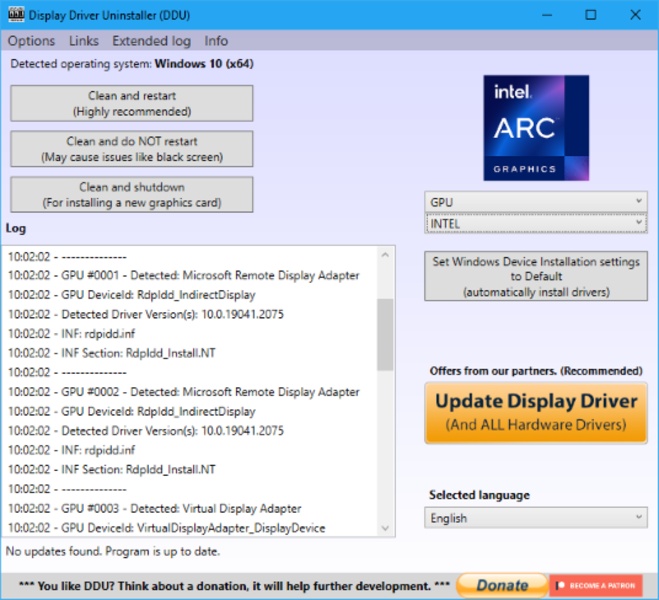
Look at the right side of the DDU interface under Select device type.
Choose GPU.
Under Select device, choose your brand (NVIDIA, AMD, or Intel).
Click the top button: Clean and restart.
DDU will log the removal process and automatically reboot your PC back into normal Windows.
4. Install Fresh Drivers
Once Windows boots up, your screen resolution might look low. This is normal.
Launch the driver installer you downloaded in the pre-requisites step.
Follow the on-screen prompts to complete the installation.
Reconnect your internet cable or Wi-Fi.
Restart your PC one final time to finalize changes.
💡 Pro-Tips for Blog Readers
Switching Brands? If moving from NVIDIA to AMD (or vice versa), run DDU for the old brand before physically swapping the graphics cards.
Frequency: Do not use DDU for every simple driver update. Only use it during GPU hardware upgrades or when troubleshooting persistent visual glitches.
